 Beta
Beta
Beta
Beta
A simple register for your accounts, bills and spending. Everything stays on your own device, and it works like an app once it's on your home screen.
Takes about 30 seconds. No account, no sign-up.
Balance or Bust is a web app, so there's nothing to download. Add it to your phone or tablet and it opens full-screen, just like an app.
Open app.balanceorbust.com in Safari. This only works in Safari, not Chrome or another browser.
Tap the Share icon in the toolbar (the square with an arrow pointing up).
Scroll down and tap Add to Home Screen, then confirm.
Open app.balanceorbust.com in Chrome.
Tap the menu icon (the three dots in the top corner).
Tap Add to Home screen (or Install app), then confirm.
Heads up: your data lives only on the device you use, so it doesn't sync between devices. A phone and a tablet will each have their own separate register. You can move your data between devices with the backup feature.
A native iOS app is planned for a future release.
Six things you'll use every week. Jump to any of them.
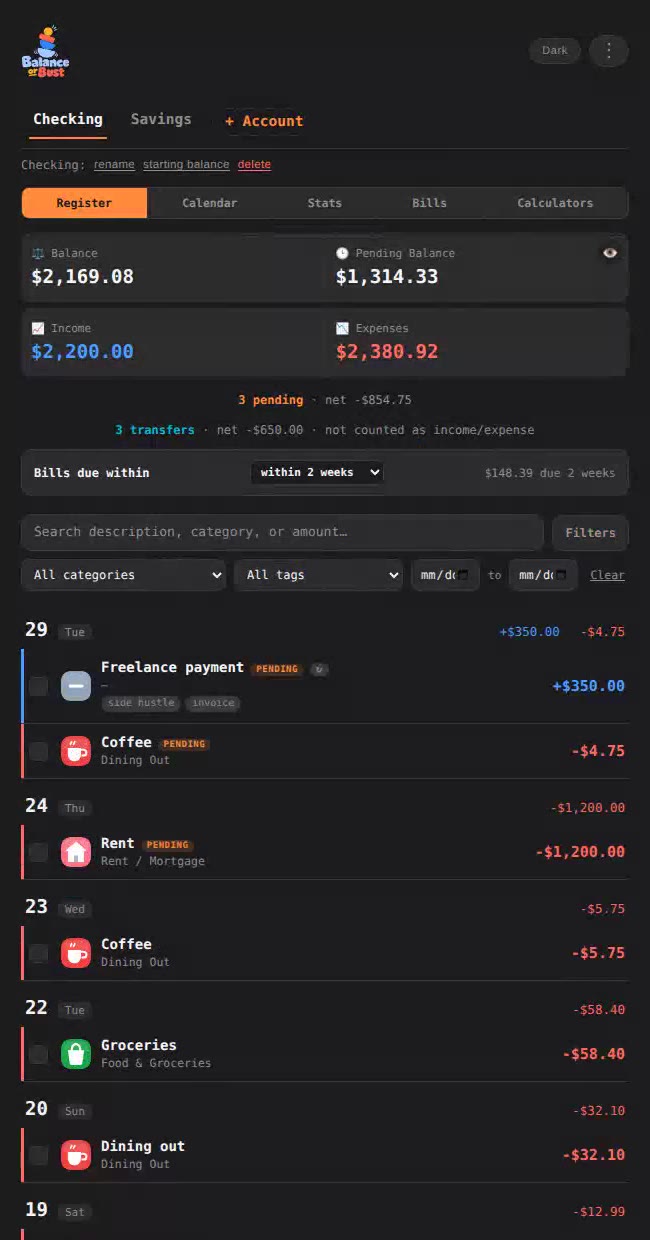
Every deposit and purchase goes in your register. Keep entries pending until they clear your bank, and your balance and pending balance always tell the truth.
Add a bill once and it rolls forward to its next due date every time you pay it.
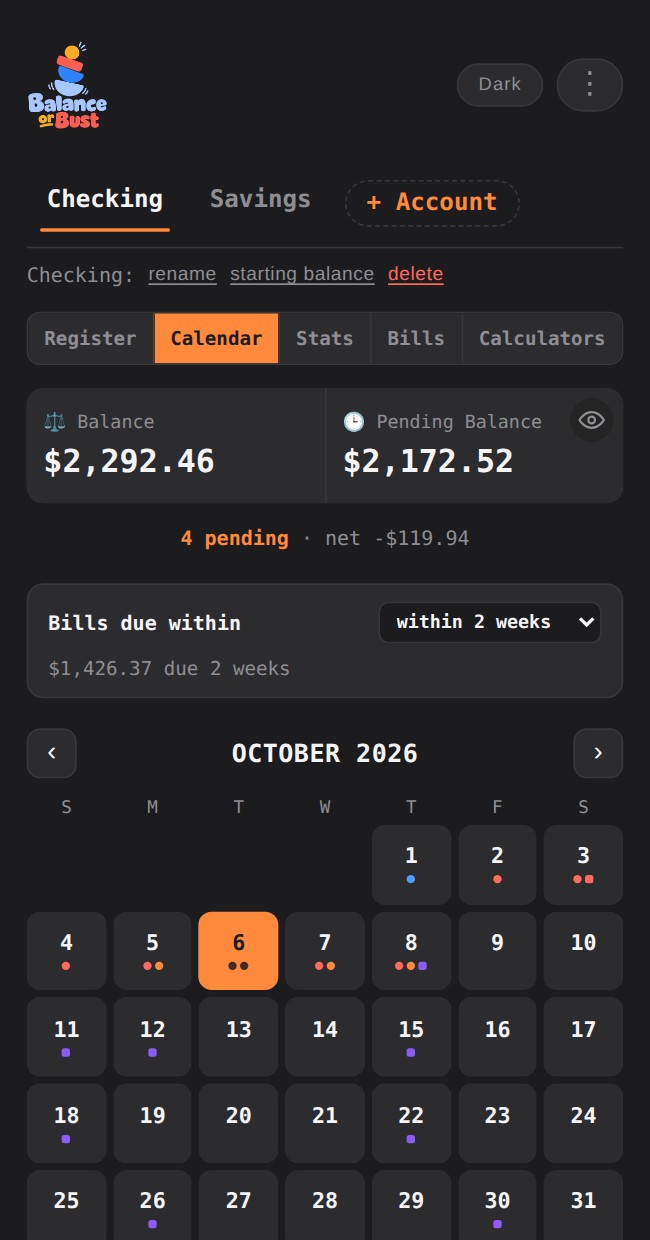
Every day with activity gets a marker, and every bill shows up on its due date, so busy weeks stand out before they surprise you.
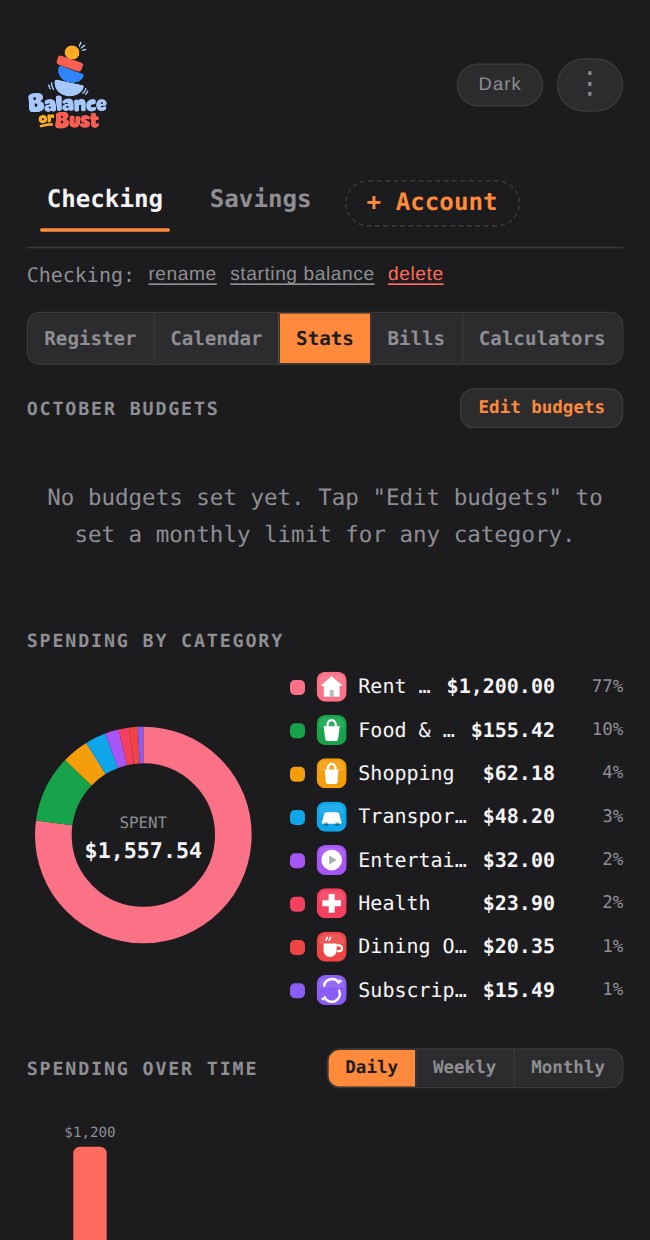
Spending by category, budgets that speak up when you're over, and trends over time.
Four planners are built right in, so you don't have to leave the app to do the math.
Everything lives in your own browser. There's no bank login, no account, and nothing is uploaded to a server.
No. Everything is saved on the device and browser you use, so a phone and a tablet each keep their own separate register. That's also what keeps it private, since nothing is uploaded. If you want the same data somewhere else, back it up from the app's menu and restore it on the other device.
No. There's no bank login, no linked accounts and no account numbers anywhere in the app. You enter what you want to track, so you're always in control of what's in your register.
Yes. Your accounts, entries and bills stay on your own device and are never sent to a server. There's no account to create and nothing to sign in to.
Open the app's menu and choose Backup & restore. It saves everything, including accounts, entries, bills and custom categories, to a single file. On the new device, restore that file. Back up regularly, because clearing your browser data or removing the home-screen icon can erase what's on the device.
On the Register tab, tap Clear posted transactions (it asks you to tap twice). Every posted entry is removed, your pending entries stay, and your posted balance carries forward as the new starting balance, so your numbers don't change. An Undo button appears right after, in case you tapped by mistake.
Open the bill's payment screen and set the amount to 0. The button changes to Skip this month. The bill moves to its next due date and nothing gets logged in your register.
It sets how far ahead you're looking, from 3 days to 3 months. The Bills tab shows only the bills due in that window, plus anything past due so a missed bill never hides. A total beside it adds them up. Tap Show all bills to see the full list.
Yes. Bills appear on the calendar on their due dates, and future months show repeating bills too. Tap a day to see what's due, then tap Pay to open the same payment screen you'd get on the Bills tab.
Yes. Tap the eye in the corner of the balance box to hide the figures, and tap it again to bring them back. It's remembered on that device, which is handy when the app is on your home screen and someone's nearby.
Yes. On the Calculators tab, open Debts and add as many loans and credit cards as you like. It totals what you owe, shows when you'll be debt-free at the payments you entered, and compares paying off the highest-rate debt first (avalanche) with the smallest balance first (snowball). Credit card dates are estimates: they assume the same payment every month and no new charges. It's separate from your Bills list and saved on your device with the rest of your data.
Choose Refund instead of Income when you add an entry. The money goes into your balance, but it reduces your expenses and the spending in that category, so a $40 return on a $100 purchase shows as $60 spent. It won't inflate your income.
Yes. Add it as an account and tick "This is a credit card". The wording switches to Purchase and Payment, and refunds work the same way. To see what a card costs you in interest, add it under Calculators, then Debts.
Yes. On iPhone or iPad, add it from Safari. On Android, add it from Chrome. The steps are in the install section above.
It's free while in beta. A native iOS app is planned for a future release.
It's free while in beta, and it takes about 30 seconds to put on your home screen.